 +1 (800) 844-6603
 Follow Us






POS hardware is where restaurant technology budgets quietly get away from people. The software conversation happens first and gets all the attention, then a hardware quote arrives with fifteen line items and a total that is several times the annual software cost.
This guide covers what each piece of hardware actually does, which pieces are genuinely necessary for your service style, and which ones you can add later or skip entirely.
The five things almost every restaurant needs
| Component | What it does | Typical range | Can you skip it? |
|---|---|---|---|
| Terminal | Runs the POS software, takes orders | $300–$1,500 | No |
| Card reader | Takes chip, tap and swipe payments | $50–$400 | No |
| Receipt printer | Customer receipts, card slips | $150–$400 | Rarely |
| Cash drawer | Holds cash, opens on cash sales | $80–$200 | Only if fully cashless |
| Kitchen printer or KDS | Gets orders to the kitchen | $200–$1,200 | Only in very small operations |
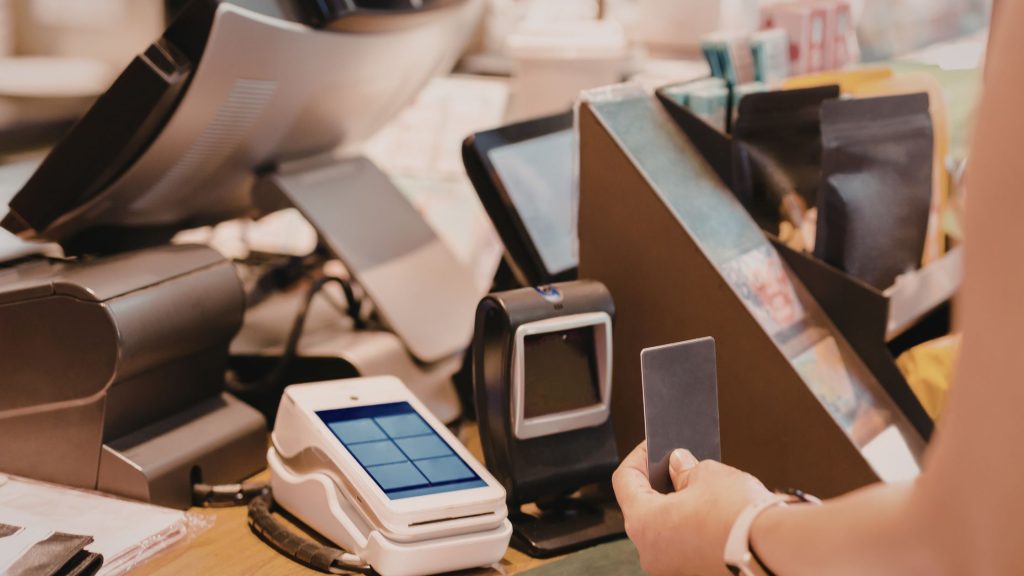
Terminals: buy for the environment, not the spec sheet
A POS terminal is a computer with a touchscreen. The processor barely matters — taking an order is not demanding work. What matters is whether it survives a commercial kitchen.
Look for a spill-resistant sealed screen, a screen you can operate with wet or gloved hands, a stand that will not tip when someone leans on it, and a power connection that is not a consumer barrel jack. Fanless designs are worth seeking out because fans pull in grease-laden air and eventually fail.
How many you need depends on flow, not on seat count. Counter service usually needs one terminal per till point. Full table service typically needs one per two to three servers, plus one at the bar. Adding terminals to fix slow service rarely works if the actual bottleneck is the kitchen.
Tablets versus fixed terminals
Tablets are cheaper, lighter and fine for taking orders at the table or running a pop-up. They are also easier to steal, easier to drop, and their batteries degrade. A reasonable pattern is fixed terminals at fixed positions and tablets for tableside or overflow.
If you are running software that installs on standard hardware — Floreant POS runs on Windows, Mac, Linux and even a Raspberry Pi — you have considerably more freedom here, because you are not buying into one vendor’s hardware catalogue.
Card readers and the question nobody asks
The reader itself is simple: it needs to accept chip, contactless and, for now, magnetic stripe. What matters far more is what the reader is tied to.
Most restaurant POS vendors supply a reader that only works with their own payment processing. That is the real product. Before buying, ask whether the reader is locked to one processor, and what your rate becomes after any introductory period. Our comparison of Square and Toast goes into why this single question dominates the total cost.
If you want to keep the ability to shop your merchant account around, you need a POS that supports multiple processors. Our payments page covers the processors ORO POS works with, including CardConnect, Heartland, TSYS and Worldpay.
Printers: two different jobs
Receipt printers
These sit at the front, print on thermal paper and are almost always connected by USB or network. Thermal printers need no ink, which is the main reason they dominate. Buy a known brand — Epson and Star are the safe choices — because the driver support is better and they last years.
Kitchen printers
Kitchen printers live in heat and grease. Impact printers are still common in kitchens because thermal paper darkens and becomes unreadable near heat, whereas impact printing survives. If your pass is hot, choose impact.
Route printing matters more than the printer. A well-configured system sends cold items to the salad station and hot items to the line automatically. If you are running multiple stations, this is worth setting up properly on day one.
Kitchen display systems: when a screen beats paper
A KDS replaces kitchen printers with screens. It removes paper cost, timestamps every order, shows you where the delays are, and cannot jam mid-service.
The honest assessment is that a KDS earns its money above roughly 60–80 covers a night, or wherever you have more than two prep stations. Below that, printers are simpler and staff already understand them. Our kitchen display system buyer’s guide covers the decision in more depth.
What gets upsold that you can usually skip
- Customer-facing display screens. Genuinely useful for transparency and tipping in counter service. Near-useless in table service.
- Extra terminals "for growth". Buy them when you need them. Prices fall, and your layout will change.
- Handheld ordering devices for small dining rooms. Below about 40 seats, the walk to a fixed terminal is not your bottleneck.
- Premium cash drawers. A cash drawer is a metal box with a solenoid. The expensive one opens the same way.
- Extended warranties on printers. Printers either fail in the first month or last five years.
Buying order for a new restaurant
If you are opening and need to sequence the spend:
- Terminal and card reader first. You cannot trade without them.
- Receipt printer and cash drawer next, unless you are genuinely cashless.
- Kitchen printing before anything else in the kitchen. Verbal order calling breaks down faster than owners expect.
- KDS, handhelds and customer displays once you know your actual volume — typically three to six months in.
One last piece of advice: whatever you buy, write down the model numbers and keep them. When a printer dies mid-service two years from now, knowing exactly what it was turns a crisis into a next-day replacement. If you are still choosing software, our complete POS setup guide covers how hardware and software decisions interact.